
The HubSpot integration brings the contacts in your HubSpot CRM into Reos People. Once they are in Reos, you can invite them to interviews, studies and surveys, filter them by lifecycle stage or lead status, and keep track of who took part in what.
Reos only reads from HubSpot. It never creates, changes or deletes anything in your HubSpot account.
What you need
- A Reos account with the Admin or Owner role in your organization.
- A HubSpot user who can install apps in your HubSpot account: a super admin, or a user with the App Marketplace access permission.
Connect HubSpot
-
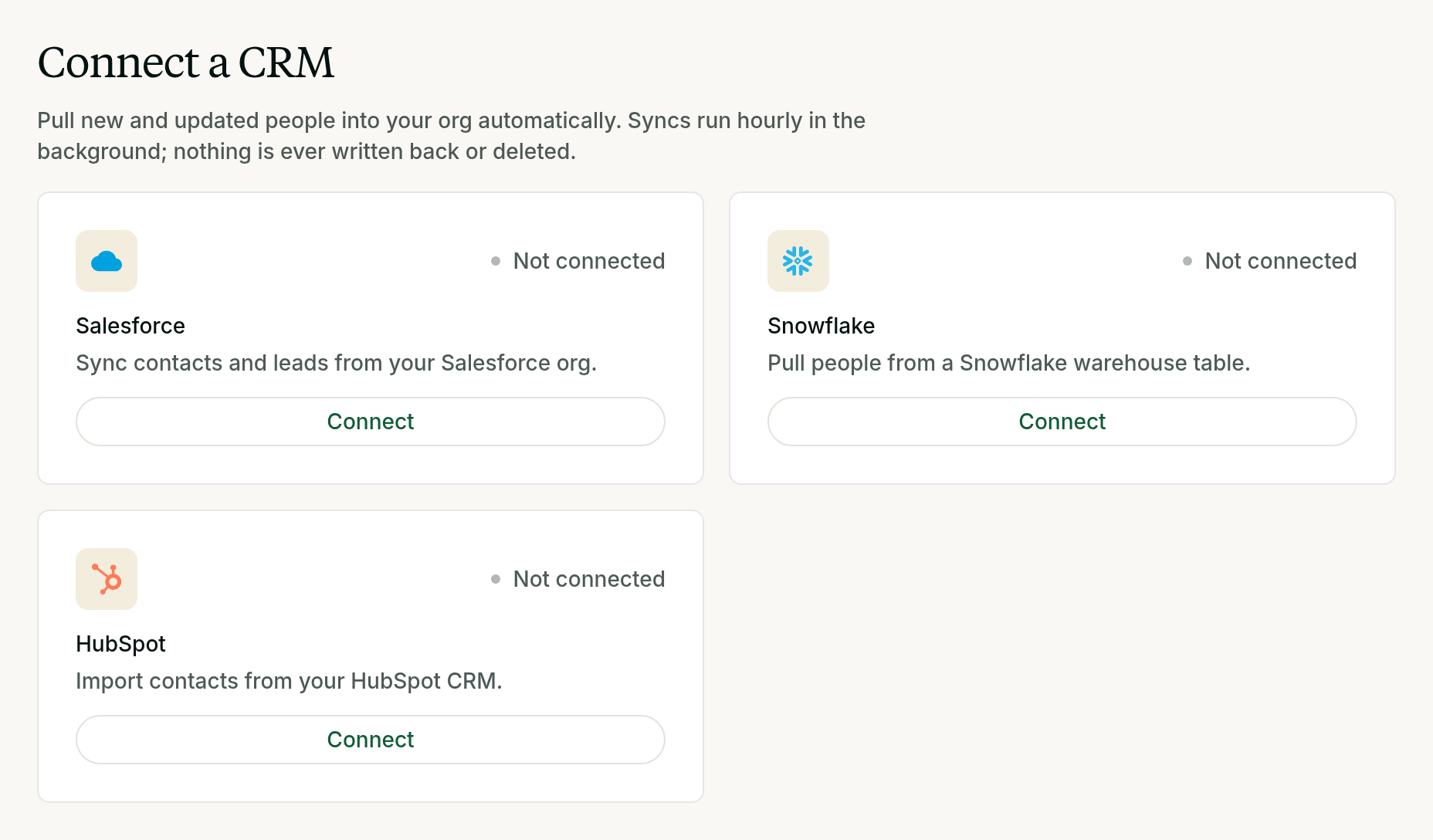
In Reos, open People → Import. Under Connect a CRM, select Connect on the HubSpot card.
-
A HubSpot window opens. Sign in if asked, choose the HubSpot account to connect, review the access Reos asks for (read your contacts) and select Connect app.
-
The window closes and the first sync starts right away. The HubSpot card shows Connected, the account name, and how many people were added.
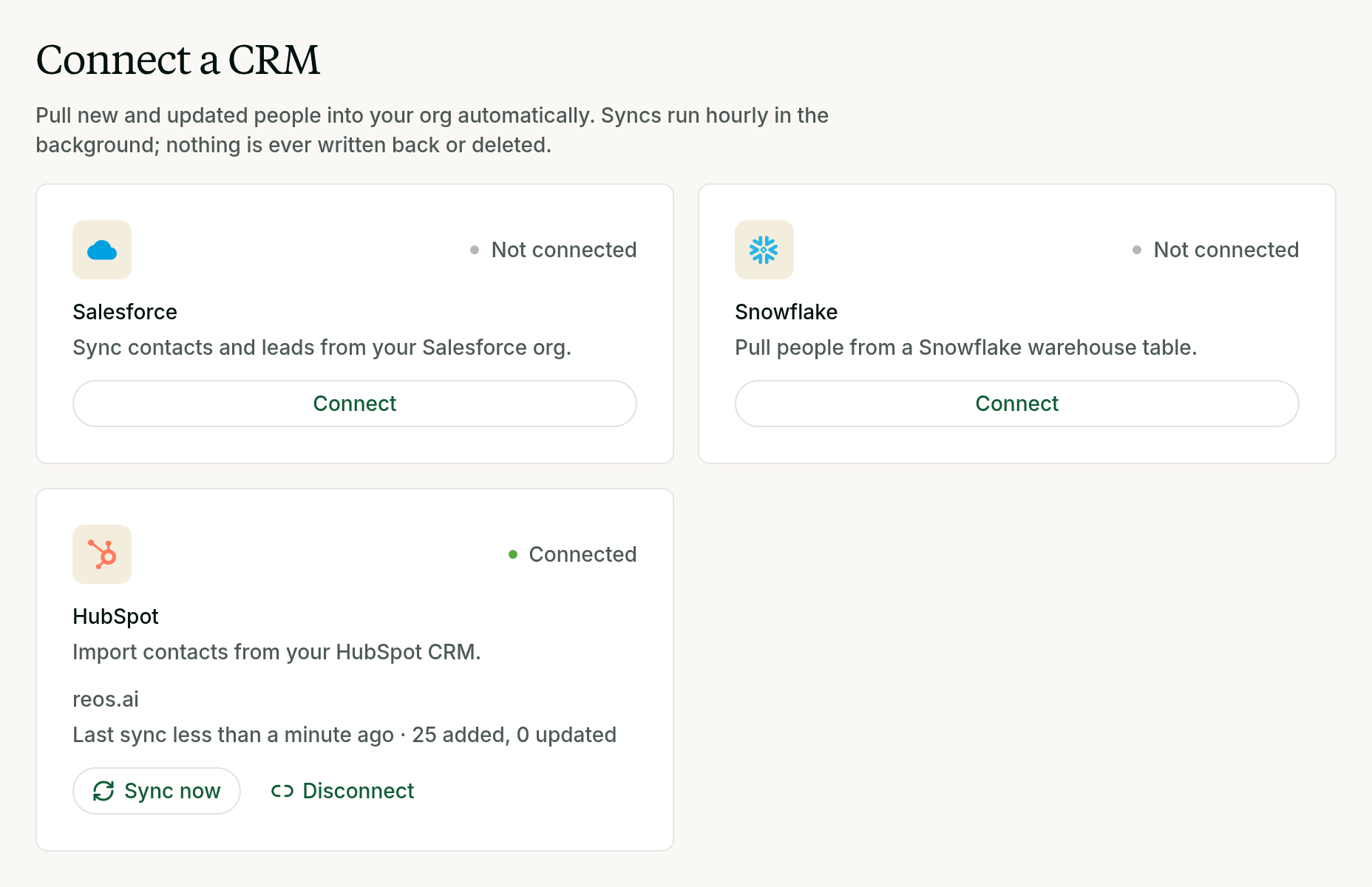
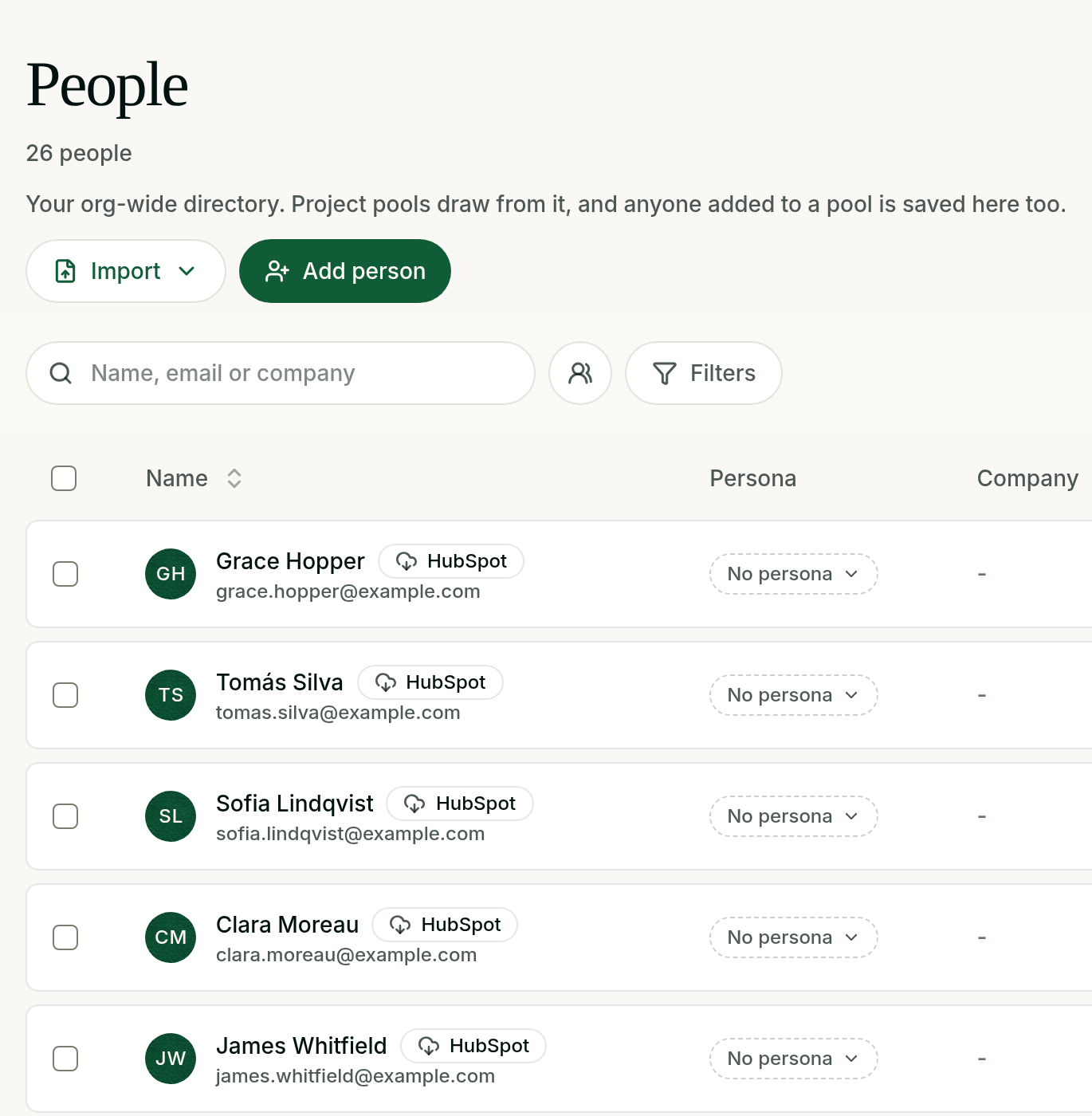
The imported contacts appear in People, each with a HubSpot badge.
What gets synced
Reos syncs HubSpot contacts. Companies, deals, tickets and other objects are not read.
| HubSpot property | Reos People field |
|---|---|
| First name, Last name | Name, first name, last name |
| Salutation | Salutation |
| Phone number (or Mobile phone number) | Phone |
| Job title | Title |
| Lifecycle stage | Lifecycle stage |
| Lead status | Lead status |
| Street address, City, State/Region, Postal code, Country/Region | Address |
A contact needs a name or an email to be imported. Contacts with neither are skipped. A contact with only an email is named after it.
The full set of properties Reos read is kept on each person, so nothing is lost if a field has no direct match.
Keeping in sync
After the first sync, Reos checks HubSpot every hour and imports the contacts that were created or changed since the last sync. Select Sync now on the HubSpot card to sync straight away.
- No duplicates. Each person remembers their HubSpot contact ID, so a contact whose email changes in HubSpot updates the same person. A contact whose email already belongs to someone in People is merged into that person instead of creating a second one.
- HubSpot wins where it has a value. A sync only writes the fields HubSpot sends. A field HubSpot has a value for is overwritten with that value on the next change in HubSpot, so edit those fields in HubSpot. Fields you filled in Reos that HubSpot leaves empty stay as they are.
- Nothing is deleted. Archiving or deleting a contact in HubSpot does not remove the person from Reos.
A large first import catches up over a few syncs. The card shows when it last synced and how many people were added and updated.
Disconnecting
To stop syncing, select Disconnect on the HubSpot card and confirm. People already imported stay in Reos.
To revoke access completely, also uninstall the app in HubSpot: Settings → Integrations → Connected apps, then Uninstall on Reos.
Privacy
Contacts synced from HubSpot are stored in your Reos organization's data region and follow the same consent and contact rules as everyone else in People. See the privacy policy for how Reos handles personal data.
Troubleshooting
- The HubSpot card shows an error: the sync failed and the card says why. If it asks you to reconnect, select Disconnect, then Connect again.
- "The HubSpot authorization now points at a different account": the person who connected HubSpot has since connected a different HubSpot account from another Reos organization. Reconnect HubSpot here with the right account.
- Some contacts are missing: check that they have a name or an email in HubSpot, then select Sync now. If they are still missing, contact support.